Cashier Instructions
1. Order Placement module下单模块
1.1 Ordering点单
1.1.1 Cash register ordering-packing 收银台点单-打包
1.1.2 Cash register - dine-in service 收银台-堂食
1.1.3 Ordering through a QR code for meal orders 点餐码点餐
1.1.4 Cashier - Self-service Ordering 收银台-自助点单
1.2 How to Pending Orderr/Retrieve Order 如何挂单/取单
1.3 discount area 折扣区
1.3.1 Single product discount/price adjustment 单商品折扣/改价
⭐1.3.2 Add discount 减价抹零
1.3.3 NO GST 整单免GST
1.3.4 Erase Service Charge 抹去服务费
1.4 Remarks 备注
1.4.1 Remarks for individual products 单商品备注
1.4.2 Notes on the entire order 整单备注
1.4.3 Edit Notes 编辑备注
1.5 Cancel All 整单取消
1.6 Cash box 手动开启钱箱
1.7 Split Tables/Merge Tables/Transfer Table 拆桌/合桌/转台
1.7.1 Split Tables 拆桌
1.7.2 Merge Tables 合桌
1.7.3 Transfer Table 转台
1.8 Payment 支付
1.8.1 General Payments 普通支付
1.8.2 Member Payments 会员支付
1.9 View Adjustments 视图调整
1.9.1 Modify the size of the category column 修改分类栏的尺寸
1.9.2 Product display with or without pictures 商品展示有图无图
1.9.3 Product sorting 商品排序
⭐1.10 Modify the Dish Name/Price/Edit 修改商品名称/价格/库存
1.10.1 Modify Name/Price 修改名称/价格
1.10.2 Modify the Edit修改商品库存
2. Membership 会员
2.1 Member creation and login 会员创建和登录
⭐2.2 View membership base information 查看会员基础信息
2.3 Member Recharge 会员充值
2.4 View member usage records 查看会员使用记录
⭐2.5 Issuance/use of membership coupons 会员优惠卷的发放/使用
3. KDS
3.1 How to Select Kitchen 如何切换厨房
3.2 Find orders quickly 快速查找订单
3.3 Complete the production of the order product 完成订单商品制作
3.4 Withdraw an order for pickup 撤回待取餐的订单
3.5 View the details of the order to be picked up 查看待取餐订单详情
3.6 Entering the Order 输入订单
3.6.1 Edit Shortcuts 编辑快捷方式
3.7 Pick up meals 取餐
3.8 Withdraw an order that has already been picked up 撤回已取餐的订单
4. Orders and reports 订单和报表
4.1 Orders 订单
⭐4.1.1 Inquiry Order 查询订单
4.1.2 Sending to the mailbox 发送到邮箱
⭐4.1.3 Modify the payment method 修改支付方式
4.1.4 Modify the order price 修改订单价格
4.1.5 Print Kitchen Order/Print Bill 再次厨打/打印小票
⭐4.1.6 Refunds 退款
4.1.7 Return to dine in 返回桌台
4.1.8 Cancel order 取消订单
4.2 Reports 报表
4.2.1 Daily Report 日结单
4.2.2 Hourly Sales Report 小时销售报表
4.2.3 Multi Day Report 选择多天查询
4.2.4 Member Marketing Report 会员营销报表
4.2.5 Cash box manual open record 钱箱手动开启记录
4.2.6 Business/shift data 营业/班次数据
4.2.7 View reports for non-current days 查看非当天的报表
4.2.8 Printing Reports 打印报表
5. Inventory 库存管理
6. Cash Manage 现金管理
6.1 Manually add income 手动添加收入
6.2 Manually add expenditure 手动添加支出
6.3 View historical settlement records 查看历史清算记录
6.4 How to liquidate 如何清算
6.5 Increase the reserve fund 增加备用金
7. Deposit and Queue 押金和排队
7.1 Deposit 押金
7.1.1 How to deposit 怎么记录押金
7.1.2 How to view/modify the deposit 怎么查看/修改押金
7.1.3 How to use the deposit 如何使用押金
7.2 Queue 排队
⭐common problem 常见问题
Adjust consumption points 调整消费积分
How to modify consumption points 如何修改消费积分
How can members add points after their first purchase and registration 会员首次消费后注册,如何添加积分
SMS top-up 短信充值
Ajuste de Idoma 调整语言
Cash register white screen 收银机白屏
he IP address of the cash register and the card machine is the same 收银台和刷卡机IP 地址一致
Exit the screen dominance mode 退出霸屏模式
Manually add member 收银台手动添加会员
How to use Open item 如何使用Open item
Receipt calculation 小票计算
Custom table Settings 自定义桌台设置
How to arrange the table 如何摆放桌子
How to add regional text 如何添加区域文字
How to delete content 如何删除内容
Coupon difference 优惠券
PR use PR使用
Order association PR 订单关联PR
Order cancellation/modification PR 订单取消/修改PR
-
+
首页
1.7.2 Merge Tables 合桌
**It is used for multiple tables of customers to combine meals, and combine multiple tables that were originally separated into one table in the ordering system, which is convenient for ordering and checkout operations in a unified manner 用于多桌顾客合并用餐的情况,将原本分开的多个餐桌在点餐系统中合并为一桌,方便统一进行点餐和结账操作** ## Operation entrance 操作入口 When combining tables, you need to place orders for two tables separately before combining tables ==1.If the table is not ordered, the table cannot be closed 2.If the table is registered as a member, the order membership information will be cleared, and you need to reprocess the membership/discount/coupon operation== 合桌时,需要在两个桌位分别下好单之后,再进行合桌操作 ==1.如果餐桌未下单不能进行合桌操作 2.如果该桌台已登录会员,订单会员信息会被清空,需重新处理会员/折扣/优惠券等操作== 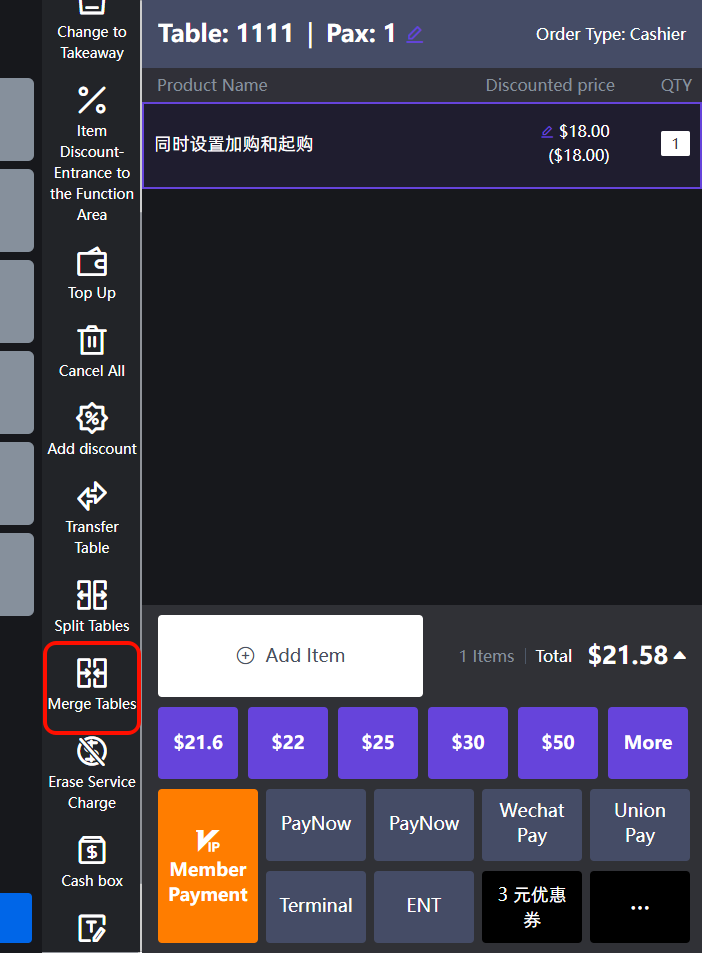 ## Operation process 操作流程 Click the 'Merge Tables' button to select the tables to be split to/Takeaway (packing) Click the 'Confirm' button to successfully dismantle the tables (only the ordered tables will be displayed) 点击‘合桌’按钮选择拆分至的桌台/Takeaway(打包)点击‘确认’按钮,拆桌成功(只会显示已下单的桌台) 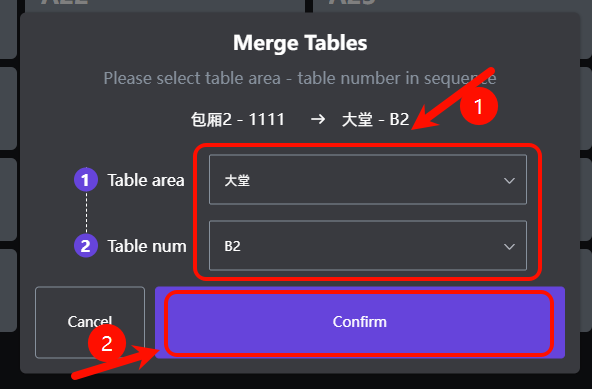 ## Display after closing the table 合桌后展示 **After the table is combined, the bill is checked out according to the combined table (products merged to the table are displayed as additional purchases)** 1.Product display, display all the combined products 2.Menu, pre-statement, checkout receipt, and receipt showing normal products 3.The kitchen will print a notice of table receipts **合桌后,按照合并后的桌台结账(合并至桌台的商品以加购的方式展示** 1.商品展示,展示合并后的全部商品 2.上菜单、预结单、结账小票,展示正常商品的小票收据 3.厨房合跑堂会打印合桌小票通知 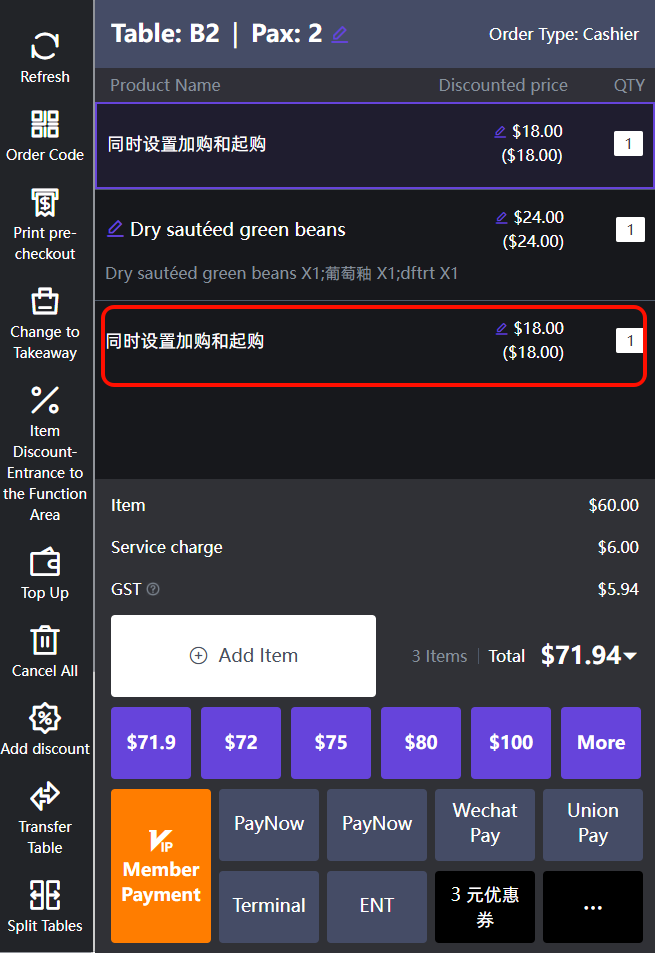 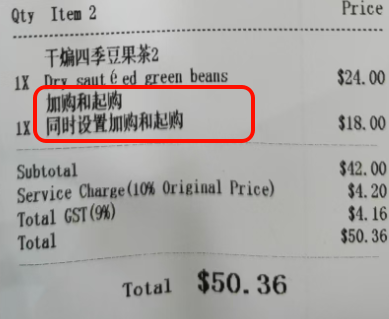 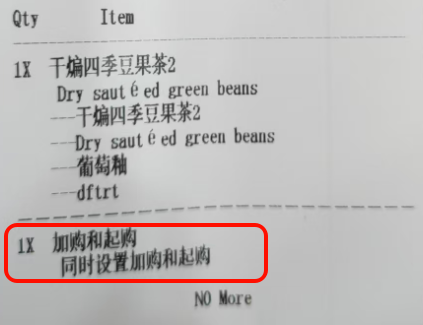 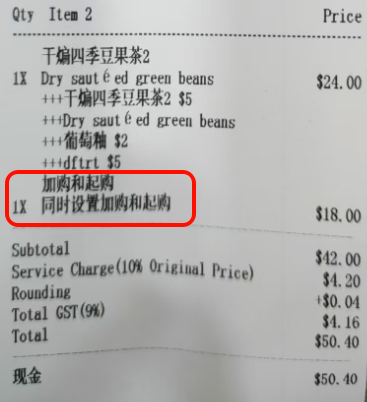 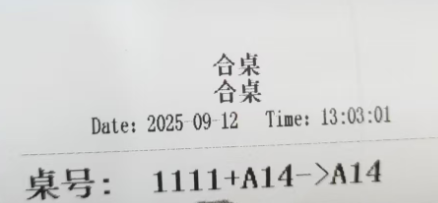 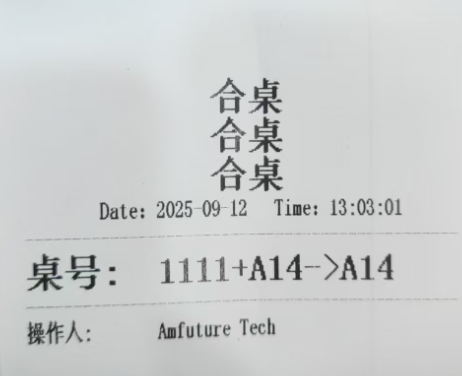
pos
2025年9月19日 15:55
转发文档
收藏文档
上一篇
下一篇
手机扫码
复制链接
手机扫一扫转发分享
复制链接
Markdown文件
PDF文档(打印)
分享
链接
类型
密码
更新密码