Cashier Instructions
1. Order Placement module下单模块
1.1 Ordering点单
1.1.1 Cash register ordering-packing 收银台点单-打包
1.1.2 Cash register - dine-in service 收银台-堂食
1.1.3 Ordering through a QR code for meal orders 点餐码点餐
1.1.4 Cashier - Self-service Ordering 收银台-自助点单
1.1.5 Independent table layout 独立桌码
1.1.6 Dynamic QR Code 动态桌码
1.2 How to Pending Orderr/Retrieve Order 如何挂单/取单
1.3 discount area 折扣区
1.3.1 Single product discount/price adjustment 单商品折扣/改价
⭐1.3.2 Add discount 减价抹零
1.3.3 NO GST 整单免GST
1.3.4 Erase Service Charge 抹去服务费
1.4 Remarks 备注
1.4.1 Remarks for individual products 单商品备注
1.4.2 Notes on the entire order 整单备注
1.4.3 Edit Notes 编辑备注
1.5 Cancel All 整单取消
1.6 Cash box 手动开启钱箱
1.7 Split Tables/Merge Tables/Transfer Table 拆桌/合桌/转台
1.7.1 Split Tables 拆桌
1.7.2 Merge Tables 合桌
1.7.3 Transfer Table 转台
1.8 Payment 支付
1.8.1 General Payments 普通支付
1.8.2 Member Payments 会员支付
1.9 View Adjustments 视图调整
1.9.1 Modify the size of the category column 修改分类栏的尺寸
1.9.2 Product display with or without pictures 商品展示有图无图
1.9.3 Product sorting 商品排序
⭐1.10 Modify the Dish Name/Price/Edit 修改商品名称/价格/库存
1.10.1 Modify Name/Price 修改名称/价格
1.10.2 Modify the Edit修改商品库存
1.11 Open item
1.12 Receipt Printing Confirmation 收银小票打印确认
2. Membership 会员
2.1 Member creation and login 会员创建和登录
⭐2.2 View membership base information 查看会员基础信息
2.3 Member Recharge 会员充值
2.4 View member usage records 查看会员使用记录
⭐2.5 Issuance/use of membership coupons 会员优惠卷的发放/使用
3. KDS
3.1 How to Select Kitchen 如何切换厨房
3.2 Find orders quickly 快速查找订单
3.3 Complete the production of the order product 完成订单商品制作
3.4 Withdraw an order for pickup 撤回待取餐的订单
3.5 View the details of the order to be picked up 查看待取餐订单详情
3.6 Entering the Order 输入订单
3.6.1 Edit Shortcuts 编辑快捷方式
3.7 Pick up meals 取餐
3.8 Withdraw an order that has already been picked up 撤回已取餐的订单
4. Orders and reports 订单和报表
4.1 Orders 订单
⭐4.1.1 Inquiry Order 查询订单
4.1.2 Sending to the mailbox 发送到邮箱
⭐4.1.3 Modify the payment method 修改支付方式
4.1.4 Modify the order price 修改订单价格
4.1.5 Print Kitchen Order/Print Bill 再次厨打/打印小票
⭐4.1.6 Refunds 退款
4.1.7 Return to dine in 返回桌台
4.1.8 Cancel order 取消订单
4.2 Reports 报表
4.2.1 Daily Report 日结单
4.2.2 Hourly Sales Report 小时销售报表
4.2.3 Multi Day Report 选择多天查询
4.2.4 Member Marketing Report 会员营销报表
4.2.5 Cash box manual open record 钱箱手动开启记录
4.2.6 Business/shift data 营业/班次数据
4.2.7 View reports for non-current days 查看非当天的报表
4.2.8 Printing Reports 打印报表
5. Inventory 库存管理
6. Cash Manage 现金管理
6.1 Manually add income 手动添加收入
6.2 Manually add expenditure 手动添加支出
6.3 View historical settlement records 查看历史清算记录
6.4 How to liquidate 如何清算
6.5 Increase the reserve fund 增加备用金
7. Deposit and Queue 押金和排队
7.1 Deposit 押金
7.1.1 How to deposit 怎么记录押金
7.1.2 How to view/modify the deposit 怎么查看/修改押金
7.1.3 How to use the deposit 如何使用押金
7.2 Queue 排队
⭐common problem 常见问题
Adjust consumption points 调整消费积分
How to modify consumption points 如何修改消费积分
How can members add points after their first purchase and registration 会员首次消费后注册,如何添加积分
SMS top-up 短信充值
Ajuste de Idoma 调整语言
Cash register white screen 收银机白屏
he IP address of the cash register and the card machine is the same 收银台和刷卡机IP 地址一致
Exit the screen dominance mode 退出霸屏模式
Manually add member 收银台手动添加会员
How to use Open item 如何使用Open item
Receipt calculation 小票计算
Custom table Settings 自定义桌台设置
How to arrange the table 如何摆放桌子
How to add regional text 如何添加区域文字
How to delete content 如何删除内容
Coupon difference 优惠券
PR use PR使用
Order association PR 订单关联PR
Order cancellation/modification PR 订单取消/修改PR
Difference between Takeaway & Virtual Table 打包&虚拟桌台的区别
Printer Failure Emergency Plan 打印机无法打印应急方案
-
+
首页
1.1.6 Dynamic QR Code 动态桌码
> This section explains the "Dynamic QR Code" function, triggered by the "Order Code" button. It generates a unique ordering QR code to prevent unauthorized orders. The system supports two distinct operational models based on your backend settings: high-end service and time-limited buffets. <br> 本节说明由“Order Code (点餐码)”按钮触发的“动态桌码”功能。它会生成唯一的点餐二维码以防止恶意或非店内人员下单。根据后台设置,系统支持两种截然不同的运营模式:高档服务餐厅与限时自助餐。 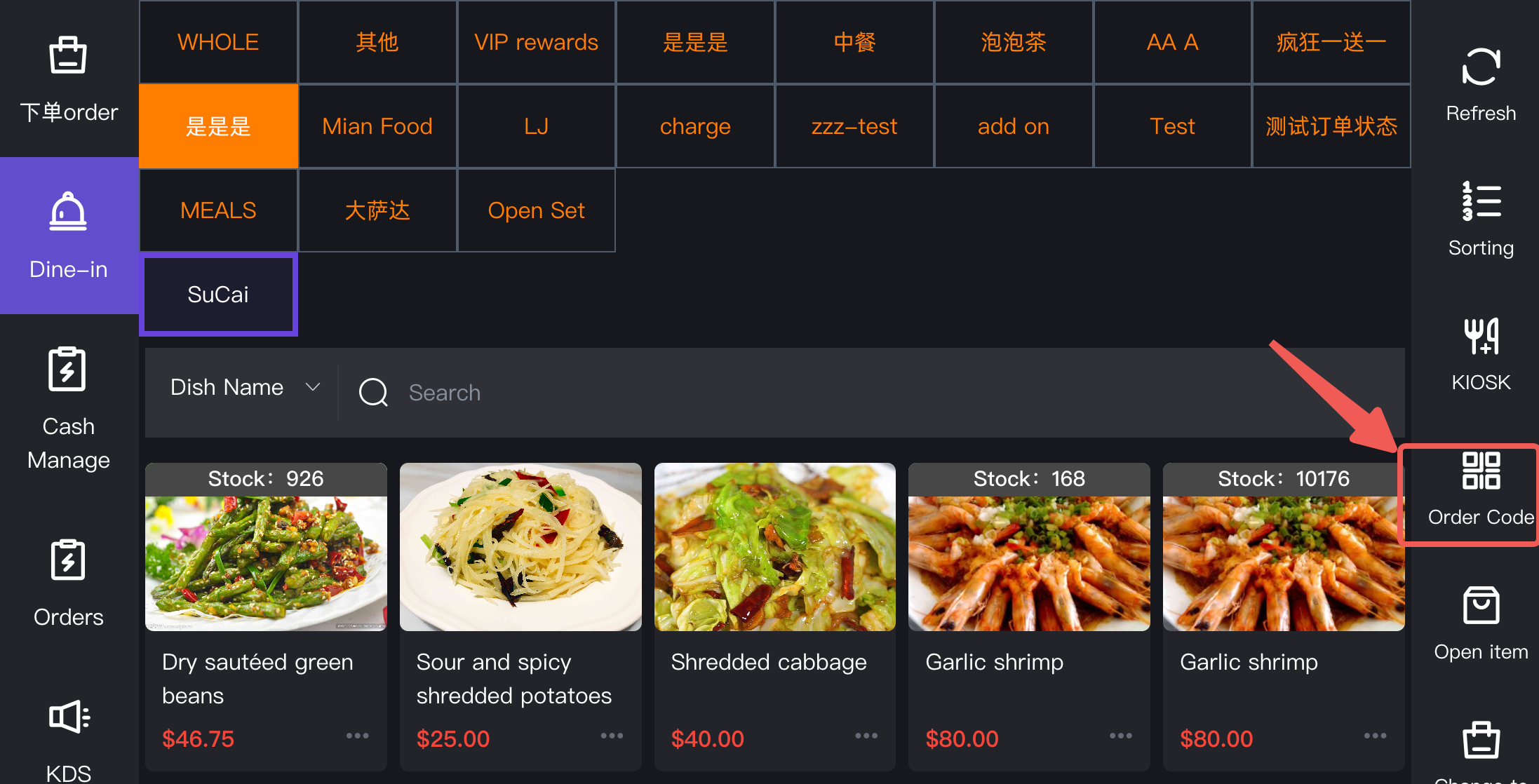 #### 1. High-End Service Workflow 高档服务餐厅模式 Suitable for traditional dine-in where guests are seated first. The QR code has no time limit and automatically expires when the table is closed and paid. <br> 适用于客人先落座的传统堂食。二维码没有时间限制,在结账关台后自动失效。 1. **Open Table (开台落座)**: Seat the guests and open a table on the POS system. <br> 1. **开台落座**:安排客人入座,并在 POS 系统上正常开台。 2. **Print Order Code (打印点餐码)**: On the right-side menu, click the **Order Code** button to print the QR code. <br> 2. **打印点餐码**:在右侧功能菜单中,点击 **Order Code** 按钮打印出点餐二维码。 3. **Present to Guest (递交顾客)**: Place the printed QR code in an elegant holder and present it to the table for ordering. <br> 3. **递交顾客**:将打印好的二维码放入精美的展示牌(或亚克力板)中,递交给该桌客人扫码点餐。 4. **Reprinting Logic (重新打印机制)**: If you need to print it again, clicking **Order Code** will generate a fresh QR code and instantly invalidate the previous one to ensure security. <br> 4. **重新打印机制**:如果再次点击 **Order Code** 打印,系统会生成一张全新的二维码,并自动让原本的旧码立即失效,以确保安全。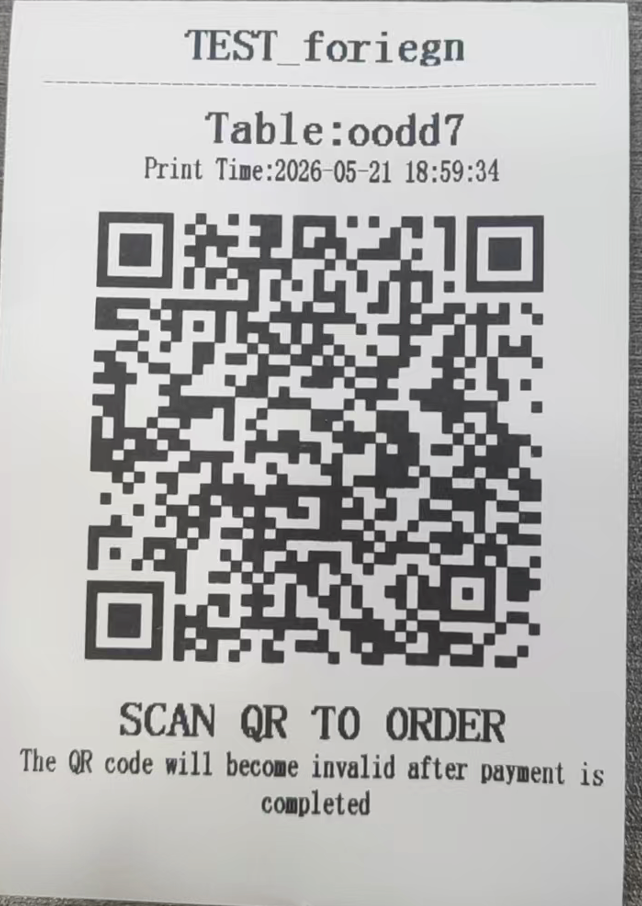 #### 2. Buffet Service Workflow 自助餐模式  Suitable for all-you-can-eat scenarios where guests pay upfront at the counter. The printed QR code has a strict expiration time. <br> 适用于客人在前台先结账(或先确定套餐)的自助餐场景。打印出的二维码具有严格的有效时间。 1. **Select Package & Pay (选择套餐与结账)**: At the front counter, guests confirm their buffet package and make the payment. The system then grants access to the corresponding all-you-can-eat menu. <br> 1. **选择套餐与结账**:客人在前台确认需要享用的自助餐套餐并付款,系统随之开放对应的免费任点菜单权限。 2. **Print Order Code (打印点餐码)**: Click the **Order Code** button at the POS. The designated printer will print a QR code ticket explicitly displaying the expiration time (e.g., valid for 3 hours). <br> 2. **打印点餐码**:在收银台点击 **Order Code** 按钮。指定的打印机会打出点餐二维码小票,且小票上会明确显示该二维码的有效时间(例如:限定 3 小时内有效)。 3. **Seat & Order (落座点餐)**: Guests take the QR code ticket to their table to order. Once the time limit is reached, the QR code automatically becomes invalid and no more items can be ordered. <br> 3. **落座点餐**:客人拿着二维码小票落座并扫码吃饭。一旦设定的时间耗尽,二维码将自动失效,系统会自动阻断顾客继续加单。 4. **Reprint or Extend (补打与续费机制)**: If you click **Order Code** again, the system will prompt a choice: you can print using the *original remaining time* (ideal if the guest lost their ticket) or generate a *new expiration time* (if the guest paid to extend their buffet time). <br> 4. **补打与续费机制**:如果再次点击 **Order Code**,系统会要求您进行选择:您可以选择按照*原有的剩余时间*打印(适用于客人弄丢了小票需要补打),或者重新生成*新的有效时间*(适用于客人续费继续就餐)。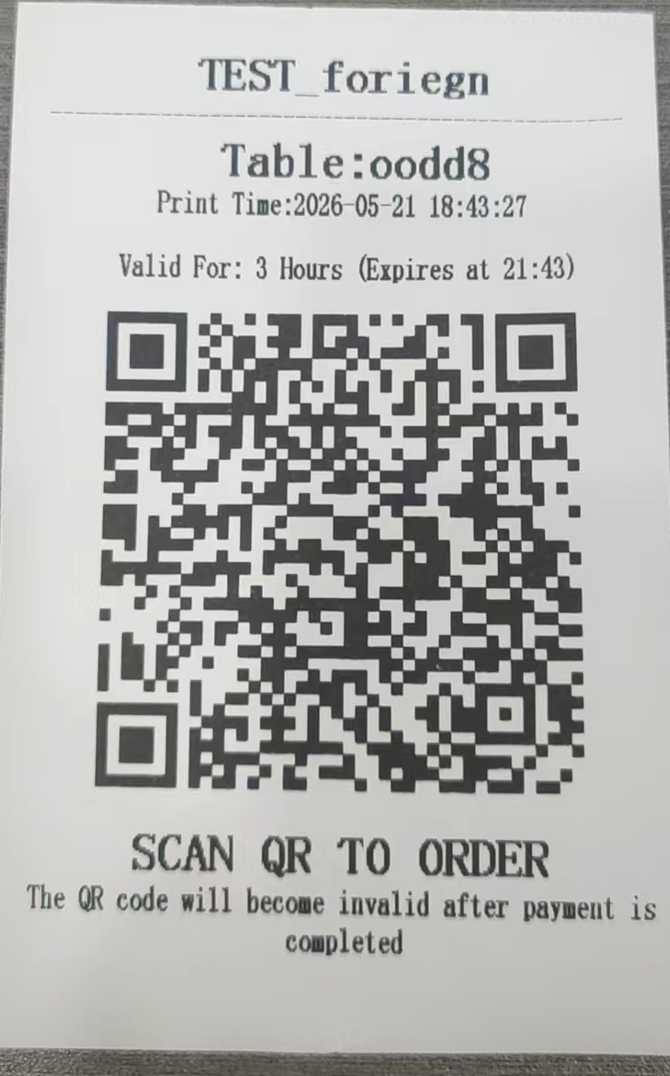 ### 2. Frequently Asked Questions (FAQ) 常见问题 **1. QR Code Expiration / 动态桌码失效机制** * **Q: Will the Dynamic QR Code leak and allow people outside the restaurant to place fake orders?** <br> **Q:动态桌码会泄露导致不在店里的人恶意下单吗?** * **A:** No. The Dynamic QR Code is highly secure. In high-end restaurants, the code automatically dies the moment the table is checked out and closed, or if a new code is printed. In buffet mode, it strictly expires based on the preset countdown. Old codes cannot be reused. <br> **A**:不会,动态桌码非常安全。在高档餐厅模式下,只要该桌结账关台,或重新打印了新码,旧码瞬间作废;在自助餐模式下,时间一到立即失效。过期的旧码完全无法被重复利用。 **2. Printer Settings / 点餐码未打印排障** * **Q: I clicked "Order Code", but no QR code ticket was printed out. What should I do?** <br> **Q:我点击了“Order Code (点餐码)”,但是打印机没有打出任何二维码小票,我该怎么办?** * **A:** First, check if the POS printer has paper and is functioning. Second, verify in your backend settings that you have correctly assigned a designated printer to the "Order Code" printing task. <br> **A**:首先,请检查收银机旁的打印机是否有纸且运作正常。其次,请前往后台设置中检查,确认您是否已经为“点餐码”任务正确配置了对应的接单打印机。
pos
2026年5月21日 19:05
转发文档
收藏文档
上一篇
下一篇
手机扫码
复制链接
手机扫一扫转发分享
复制链接
Markdown文件
PDF文档(打印)
分享
链接
类型
密码
更新密码