后台
1.Menu 商品
1.1 Add Product 添加商品
1.1.1 Product image management 商品图片管理
1.1.2 Main dish as set meal name? 商品名是否进厨房
1.1.3 Members Discount Setting 会员折扣管理
1.2 Batch lmport 批量导入商品
1.3 How to batch operate goods 如何批量操作商品
1.4 sort management 分类管理
1.5 Customized package at the cash register 收银台自定义套餐
1.6 库存管理
1.6.1 快速操作商品库存
1.6.2 如何操作入库
1.6.3 如何操作损耗
1.6.4如何盘点库存
1.6.5 如何查看操作记录
1.7 Purchase Management 采购管理
1.7.1 Supplier Category 供应商管理
1.7.3 Status Setting 状态分类
1.7.4 Add Purchase Order 新增采购单
1.7.4 Edit Purchase Order Status 编辑采购单状态
1.7.5 Check the purchase order 查看采购订单详情
2.Members 会员
2.1 Member management 会员管理
2.1.1 快速查找会员
2.1.2 编辑用户信息
2.1.3 商业积分/消费积分修改
2.1.4 会员详情
2.2 Level management 等级管理
2.2.1全局设置
2.2.2新增等级
2..2.3设置等级福利
2.3消费积分管理
2.3.1 Adjusted points Settings 消费积分设置
2.3.2 消费积分获取和抵扣
2.3.3 Points validity perio 积分有效期
2.4 商业积分明细
2.4.1 充值设置
2.4.2 充值套餐
3. Statistics 统计
3.2 Members 会员统计
3.1 Sales 销售统计
4. Finance 财务
4.1 Details 资产总览
4.2 Deposit List 押金列表
4.3 SMS Balance 短信余额
4.4.1 SMS recharge 短信充值
4.4.2 Usage Record 使用记录
4.4.3 Topup Record 充值记录
4.4 GST Statistics GST统计
4.5 Recharge statistics 充值统计
4.6 ENT
4.6.1 Transaction Details 交易明细
4.6.2 Personnel Details 人员明细
4.7 钱箱日志
4.8 出入库
4.8.1 Stock Out Statistics
4.8.2 Stock In Statistics 入库统计
5.Plug-ins 插件
Cashier Desk 收银台
1. Cashier 收银员
2. Basic settings 基础设置
3. Function Setting 功能设置
4. POS Cashier POS收银端
KIOSK 自助点餐机
Settings 设置
graphics List 广告图列表
Android System 安卓系统
Delivery Service 外卖配送
Product maps 商品映射
Promotion Voucher Personalized Link 专属优惠券链接
Selling vouchers on TikTok TikTok卖券
Receive Promotion Voucher 领取优惠券
TikTok food reviewer TikTok 探店达人
如何配置AI老客户召回
1. 选择发送方式
2. 怎么配置后台参数
3.常见问题
AI加购推荐
1.人工推荐设置
2.智能推荐设置
3.加购设置
4.常见问题
PR Marketing/PR Guest-Bringing 营销/公关带客
PR settings PR设置
cashier desk open PR 收银台开启PR入口
View customer data 查看带客数据
Coupon not available time 优惠券不可用时间
Sync the coupon unusable time 同步优惠券不可使用时间
Double points configuration 翻倍积分
Account/权限
Role management 角色管理
Administrator 管理员列表
Amfuture integrates with Xero Amfuture对接Xero
How to Authorize Xero 如何授权Xero
How to declare GST 如何申报GST
Frequently Asked Questions (FAQ) 常见问题
常见问题
Create an Open item 制作Open item
Change the product picture 更换商品图片
Kds调整成先吃后付
Adjust the language of the receipt 调整小票语言
Product additive configuration 商品加料配置
1.Basic setting 基础设置
2.Frequently asked questions常见问题
3.Common cases 常见案例
4. The product is simultaneously added with other ingredients 商品同步成其他加料
Apply change to selection 批量同步商品加料
Deliver model 外卖模式
Manual Entry of Delivery Orders 手动输入外卖订单
Grab Delivery System Integration Grab 平台系统对接
Delivery Service 商家自配送外卖
Amfuture MCP 对接与 Skills 安装指南(对话式 · 一键复制版)
1. 登录与首页
-
+
首页
Settings 设置
> This tab focuses on configuring the "Table-side delivery" workflow and visual prompts specifically for the Dine-in scenario. <br> 本标签页专注于配置 KIOSK 堂食场景下的“送餐到桌”专属工作流及视觉引导提示。 #### Settings 基础设置 * **KIOSK Location (KIOSK 位置)**: The delivery method selection screen on the Kiosk terminal, immediately following the "Dine-in" selection. <br> KIOSK 自助点餐机上,紧接在“堂食”选项之后的配送/取餐方式选择屏幕。 * **POS Effect (前端效果)**: Controls whether customers are presented with an intermediate choice between "Self-pickup" and "Table-side delivery" before browsing the main menu, and defines the visual instructions for this step. <br> 控制顾客在浏览主菜单前,是否会进入一个“自己去取”或“送餐到桌”的中间选择步骤,并定义该步骤的视觉指引。 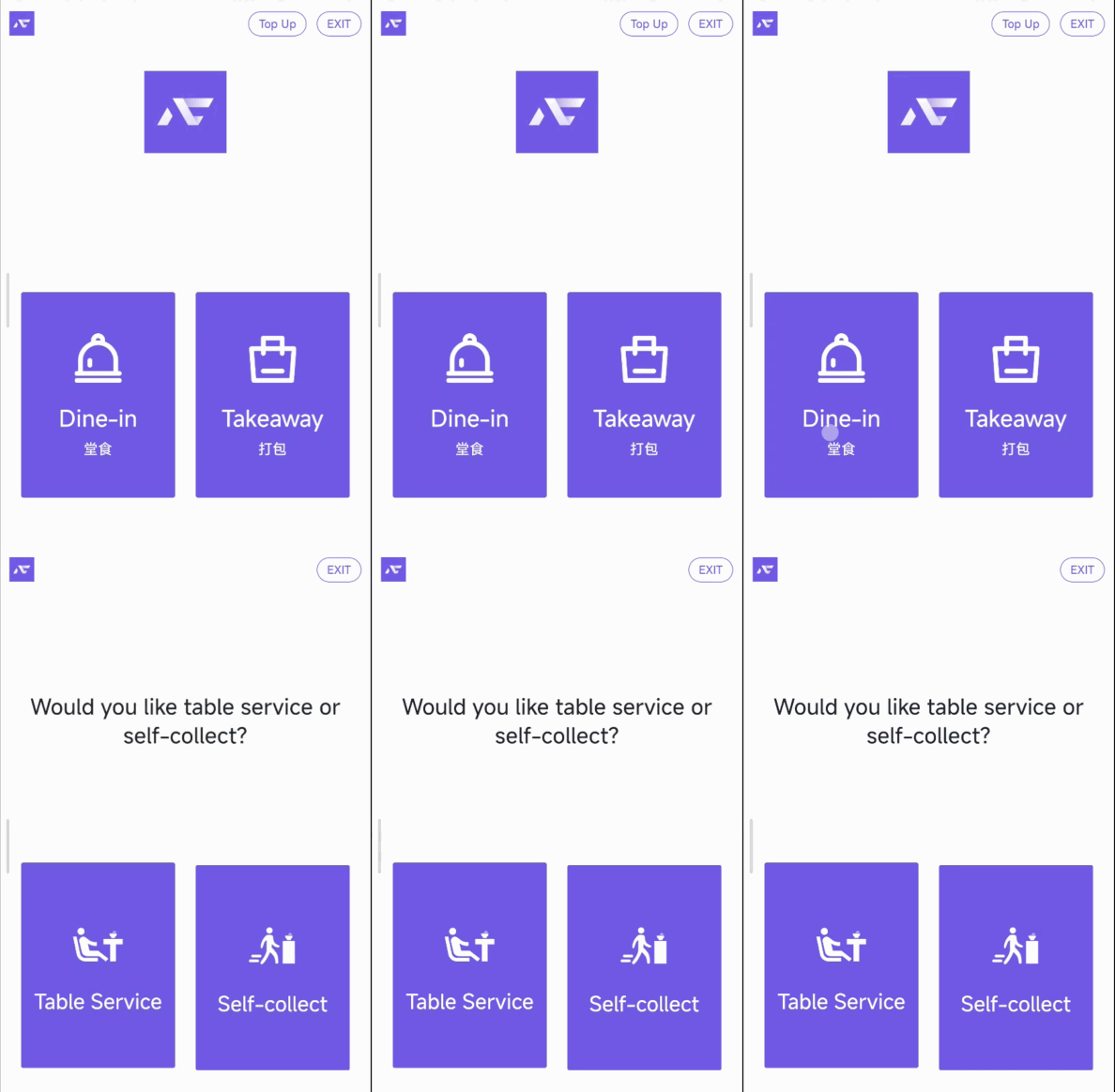 * **Enable table - side food delivery / 是否开启送餐到桌** * **Description (配置含义)**: Enables the table delivery service option for Dine-in orders. <br> 开启堂食订单的送餐到桌服务选项。 * **Effect (具体表现)**: If "Open" (and assuming Dine-in is enabled for the Kiosk), when a customer taps "Dine-in", a new screen will intercept them *before* entering the product menu. This screen asks them to choose either "Self-pickup" (自己去取) or "Table-side delivery" (送餐到桌). <br> 如果设为“Open”(前提是 KIOSK 已允许堂食),当顾客点击“堂食”后,在进入商品菜单*前*会弹出一个新页面。该页面会让顾客在“自己去取”和“送餐到桌”之间做出选择。 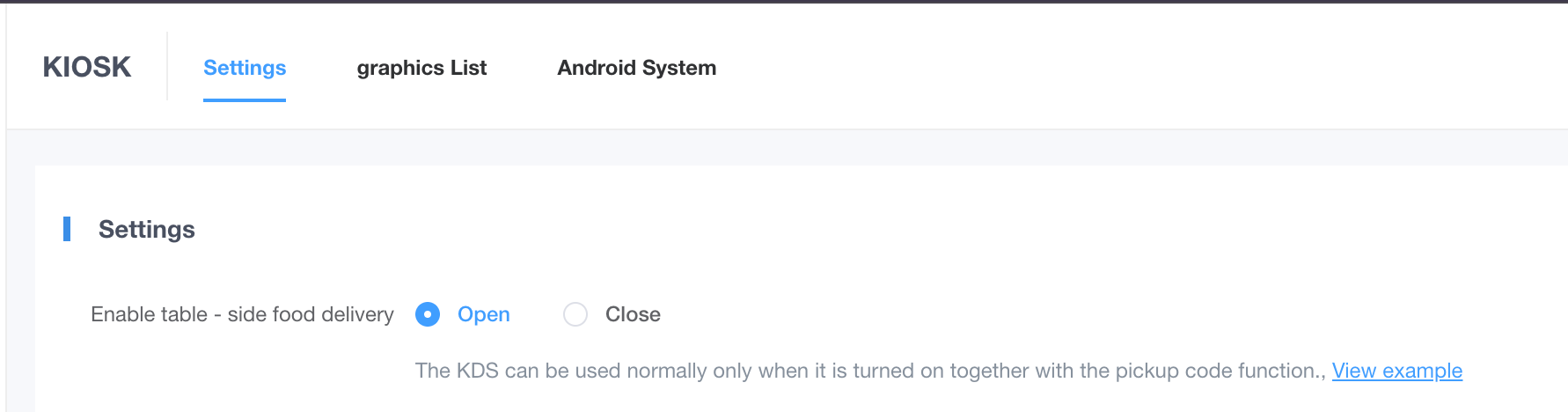 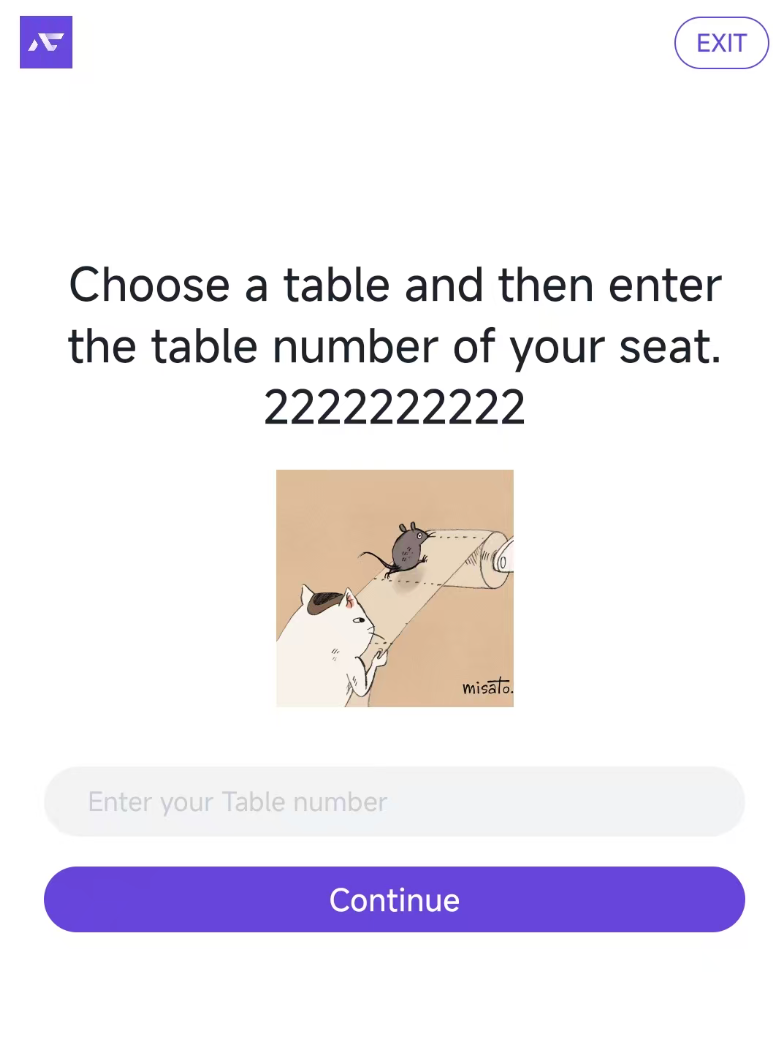 * **Prompt (中文 & English) / 多语言提示语** * **Description (配置含义)**: Custom text instructions displayed on the table-side delivery selection screen. <br> 显示在送餐到桌选择屏幕上的自定义文本说明。 * **Effect (具体表现)**: This specific text appears directly on the screen where customers choose their delivery method. It guides them on what to do (e.g., "Please grab a table number stand from the side"). The system automatically switches between the Chinese and English text based on the Kiosk's current language selection. <br> 此特定文本将直接显示在顾客选择取餐/送餐方式的界面上,用于引导顾客操作(例如:“请拿取旁边的桌牌”)。系统会根据 KIOSK 当前选择的语言环境,自动在中文和英文文案间切换。  * **Guide Image / 引导图** * **Description (配置含义)**: A visual aid displayed alongside the custom prompts to assist customers. <br> 与自定义提示语同时显示的视觉辅助图片,用以协助顾客。 * **Effect (具体表现)**: This image appears on the delivery method selection screen. Merchants typically upload a photo of the physical table number stand or its location to help customers quickly understand what they need to grab, reducing confusion and speeding up the ordering process. <br> 此图片显示在取餐/送餐方式选择界面上。商户通常会上传物理桌牌的照片或其摆放位置的图片,以帮助顾客快速理解他们需要拿取什么,从而减少困惑并加快点餐流程。 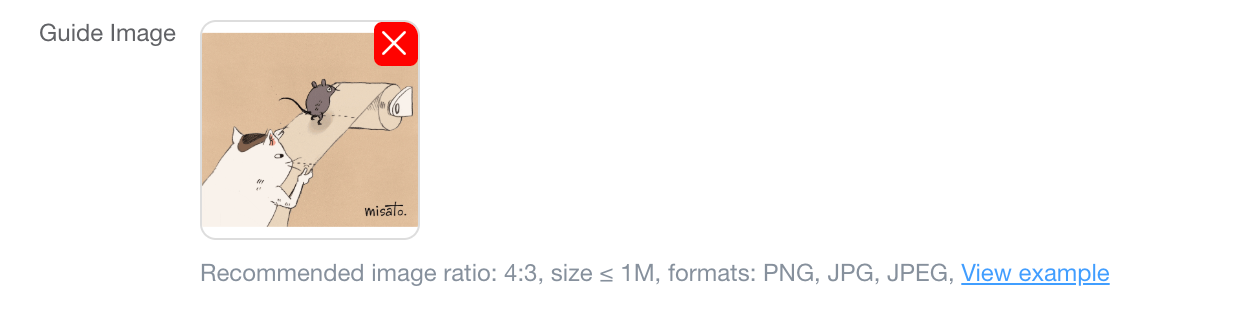 --- ### 2. Frequently Asked Questions (FAQ) 常见问题 * **Q: I enabled "table-side food delivery", but the prompt screen doesn't show up on the Kiosk. Why?** **Q:我开启了“送餐到桌”,但 Kiosk 上没有出现提示选择的屏幕。为什么?** * **A:** Please ensure two things: First, the Kiosk must have the "Dine-in" mode enabled, as this table-side delivery flow is only triggered for dine-in customers. Second, if you have KDS (Kitchen Display System) enabled, ensure the "pickup code function" is also correctly configured, as they often work together to route orders. <br> **A**:请确保两点:首先,该 Kiosk 必须已开启“堂食”模式,因为送餐到桌流程仅针对堂食顾客触发。其次,如果您启用了后厨 KDS,请确保也正确配置了“取餐码”功能,因为它们通常协同工作来分配订单。
pos
2026年4月10日 14:08
转发文档
收藏文档
上一篇
下一篇
手机扫码
复制链接
手机扫一扫转发分享
复制链接
Markdown文件
PDF文档(打印)
分享
链接
类型
密码
更新密码