后台
1.Menu 商品
1.1 Add Product 添加商品
1.1.1 Product image management 商品图片管理
1.1.2 Main dish as set meal name? 商品名是否进厨房
1.1.3 Members Discount Setting 会员折扣管理
1.2 Batch lmport 批量导入商品
1.3 How to batch operate goods 如何批量操作商品
1.4 sort management 分类管理
1.5 Customized package at the cash register 收银台自定义套餐
1.6 库存管理
1.6.1 快速操作商品库存
1.6.2 如何操作入库
1.6.3 如何操作损耗
1.6.4如何盘点库存
1.6.5 如何查看操作记录
1.7 Purchase Management 采购管理
1.7.1 Supplier Category 供应商管理
1.7.3 Status Setting 状态分类
1.7.4 Add Purchase Order 新增采购单
1.7.4 Edit Purchase Order Status 编辑采购单状态
1.7.5 Check the purchase order 查看采购订单详情
2.Members 会员
2.1 Member management 会员管理
2.1.1 快速查找会员
2.1.2 编辑用户信息
2.1.3 商业积分/消费积分修改
2.1.4 会员详情
2.2 Level management 等级管理
2.2.1全局设置
2.2.2新增等级
2..2.3设置等级福利
2.3消费积分管理
2.3.1 Adjusted points Settings 消费积分设置
2.3.2 消费积分获取和抵扣
2.3.3 Points validity perio 积分有效期
2.4 商业积分明细
2.4.1 充值设置
2.4.2 充值套餐
3. Statistics 统计
3.2 Members 会员统计
3.1 Sales 销售统计
4. Finance 财务
4.1 Details 资产总览
4.2 Deposit List 押金列表
4.3 SMS Balance 短信余额
4.4.1 SMS recharge 短信充值
4.4.2 Usage Record 使用记录
4.4.3 Topup Record 充值记录
4.4 GST Statistics GST统计
4.5 Recharge statistics 充值统计
4.6 ENT
4.6.1 Transaction Details 交易明细
4.6.2 Personnel Details 人员明细
4.7 钱箱日志
4.8 出入库
4.8.1 Stock Out Statistics
4.8.2 Stock In Statistics 入库统计
5.Plug-ins 插件
Cashier Desk 收银台
1. Cashier 收银员
2. Basic settings 基础设置
3. Function Setting 功能设置
4. POS Cashier POS收银端
KIOSK 自助点餐机
Settings 设置
graphics List 广告图列表
Android System 安卓系统
Delivery Service 外卖配送
Product maps 商品映射
Promotion Voucher Personalized Link 专属优惠券链接
Selling vouchers on TikTok TikTok卖券
Receive Promotion Voucher 领取优惠券
TikTok food reviewer TikTok 探店达人
如何配置AI老客户召回
1. 选择发送方式
2. 怎么配置后台参数
3.常见问题
AI加购推荐
1.人工推荐设置
2.智能推荐设置
3.加购设置
4.常见问题
PR Marketing/PR Guest-Bringing 营销/公关带客
PR settings PR设置
cashier desk open PR 收银台开启PR入口
View customer data 查看带客数据
Coupon not available time 优惠券不可用时间
Sync the coupon unusable time 同步优惠券不可使用时间
Double points configuration 翻倍积分
Account/权限
Role management 角色管理
Administrator 管理员列表
Amfuture integrates with Xero Amfuture对接Xero
How to Authorize Xero 如何授权Xero
How to declare GST 如何申报GST
Frequently Asked Questions (FAQ) 常见问题
常见问题
Create an Open item 制作Open item
Change the product picture 更换商品图片
Kds调整成先吃后付
Adjust the language of the receipt 调整小票语言
Product additive configuration 商品加料配置
1.Basic setting 基础设置
2.Frequently asked questions常见问题
3.Common cases 常见案例
4. The product is simultaneously added with other ingredients 商品同步成其他加料
Apply change to selection 批量同步商品加料
Deliver model 外卖模式
Manual Entry of Delivery Orders 手动输入外卖订单
Grab Delivery System Integration Grab 平台系统对接
Delivery Service 商家自配送外卖
Amfuture MCP 对接与 Skills 安装指南(对话式 · 一键复制版)
1. 登录与首页
-
+
首页
graphics List 广告图列表
> This tab is used to manage the standby advertising screensavers for the KIOSK terminal, allowing merchants to display promotions and attract passing customers. <br> 本标签页用于管理 KIOSK(自助点餐机)的待机广告轮播图,允许商户展示促销信息以吸引路过的顾客。 #### graphics List 广告图列表 * **POS Location (POS 位置)**: The full-screen standby interface (screensaver) on the KIOSK terminal when no user is interacting with it. <br> KIOSK 自助点餐机处于无人操作闲置状态时的全屏待机界面(屏幕保护程序)。 * **POS Effect (前端效果)**: Promotional posters added and enabled here will automatically loop on the idle KIOSK screen, serving as a digital billboard to prompt customers to tap and start their order. <br> 在此处添加并启用的促销海报将在闲置的 KIOSK 屏幕上自动循环播放,充当数字广告牌,提示顾客点击屏幕开始点餐。  * **Add Advertising Images / 添加广告图** 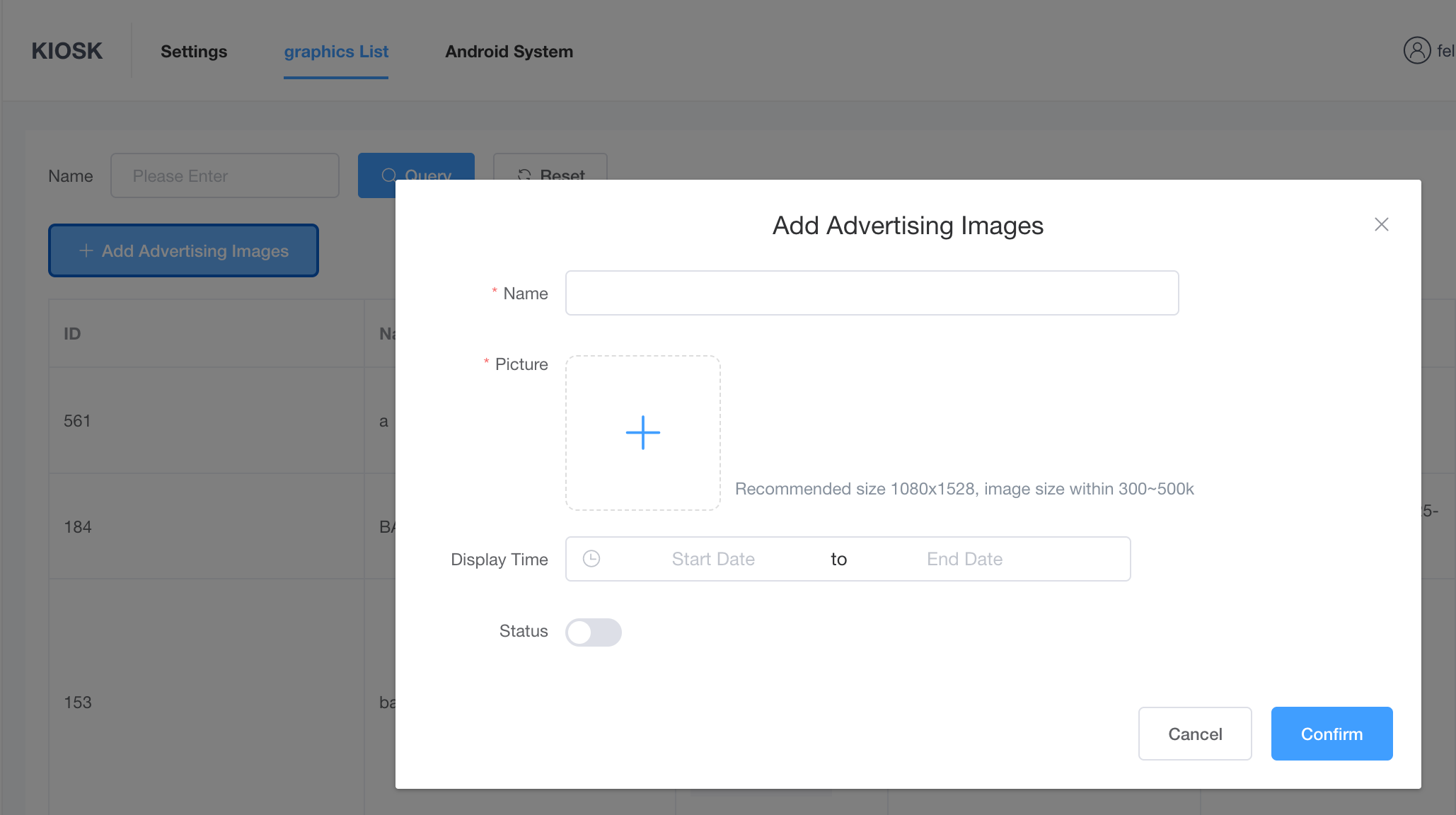 * **Description (配置含义)**: Uploads a new promotional poster to the Kiosk's advertising rotation list. <br> 上传新的促销海报到 KIOSK 的广告轮播列表中。 * **Effect (具体表现)**: Once uploaded and saved, the image file is pushed to the physical terminal. To ensure a high-definition display without causing the Kiosk application to lag or crash, it is highly recommended to strictly follow the UI guidelines: a vertical resolution of 1080x1528 and a file size between 300~500k. <br> 上传并保存后,图像文件将被推送到物理终端。为了确保高清显示且不会导致 KIOSK 应用程序卡顿或崩溃,强烈建议严格遵循 UI 指南:使用 1080x1528 的竖屏分辨率,且文件大小控制在 300~500k 之间。 * **Display Time / 展示时间** * **Description (配置含义)**: Schedules the specific active date range (Start Date to End Date) for the advertisement. <br> 为广告设定具体的生效日期范围(开始日期至结束日期)。 * **Effect (具体表现)**: The Kiosk system will read this schedule and *only* include this image in its screensaver loop during the configured period. Once the End Date passes, the poster is automatically removed from the active rotation on the Kiosk, saving merchants from manual unpublishing after a promotion ends. <br> KIOSK 系统会读取此排期,且*仅在*配置的时间段内将此图片纳入待机轮播。一旦超过结束日期,该海报将自动从 KIOSK 的有效轮播中移除,免去了商户在促销结束后手动下架的麻烦。 * **Status / 状态** * **Description (配置含义)**: Manually toggles the immediate visibility of the individual poster on the Kiosk. <br> 手动切换单张海报在 KIOSK 上的即时可见性。 * **Effect (具体表现)**: If toggled off (gray), the image is instantly hidden from the Kiosk screensaver, overriding the "Display Time" setting. The image data remains saved in the backend list, allowing the merchant to quickly re-enable it for future use. <br> 如果切换为关闭(灰色),无论“展示时间”如何设置,该图片都会立即从 KIOSK 待机屏幕中隐藏。图像数据仍保存在后台列表中,允许商户快速重新启用以供将来使用。 --- ### 2. Frequently Asked Questions (FAQ) 常见问题 * **Q: Why is my newly added advertising image not showing up on the KIOSK screen?** **Q:为什么我新添加的广告图没有在 KIOSK 屏幕上显示?** * **A:** Please verify the following three points: 1. Is the "Status" toggle switched to the ON position (blue)? 2. Is today's date within the configured "Display Time" window? 3. Have you waited a few minutes or restarted the KIOSK application to allow the new image files to fully download from the cloud? <br> **A**:请核实以下三点:1. “状态”开关是否已切换至开启位置(蓝色)?2. 今天的日期是否在配置的“展示时间”窗口内?3. 您是否等待了几分钟或重启了 KIOSK 应用程序,以允许新图像文件从云端完全下载?
pos
2026年4月10日 15:05
转发文档
收藏文档
上一篇
下一篇
手机扫码
复制链接
手机扫一扫转发分享
复制链接
Markdown文件
PDF文档(打印)
分享
链接
类型
密码
更新密码